Setting Up Are You Alive? for Your Parents
A step-by-step guide for family caregivers helping elderly parents use the app.
Before You Start
Setting up technology for aging parents requires patience and the right approach. Here's what you need:
- Your parent's smartphone (iPhone or Android)
- 30-60 minutes of uninterrupted time together
- Their email address (or create one together)
- A list of family members who should be notified
Set expectations
Explain this isn't about tracking or spying—it's about peace of mind. "This way I won't have to call you every single day to check on you. One tap lets everyone know you're okay."
Step 1: Install the App
Open the App Store
Find the App Store (iPhone) or Play Store (Android) on their phone.
Search "Are You Alive"
Type the name and find the app with the red heart icon.
Download and Install
Tap "Get" or "Install." May require their Apple ID / Google password.
Step 2: Create Their Account
- Open the app and tap "Create Account"
- Enter their email address (write this down!)
- Create a simple password (write this down too!)
- Complete the setup wizard
Google/Apple Sign-In
If they already use Google or Apple on their phone, use "Sign in with Google" or "Sign in with Apple" instead—no new password to remember.
Step 3: Add Emergency Contacts
These are the people who receive an email if your parent misses check-ins. This is the most important step.
- Go to Settings → Emergency Contacts
- Add YOUR email address first
- Add siblings or other family members
- Consider adding a nearby neighbor
- Set Alert Delay to 1 day (recommended for elderly)
Step 4: Connect Family as Friends
- Have all family members download the app first
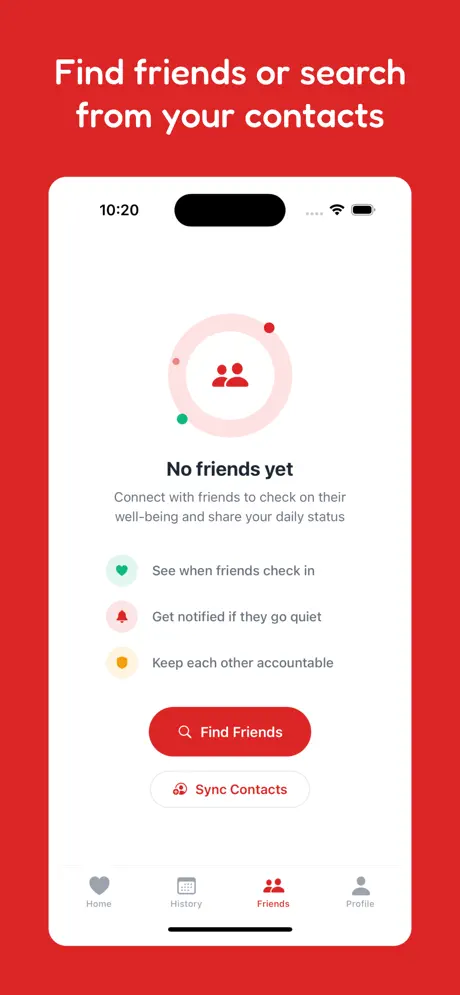
- On your parent's phone, go to Friends tab
- Search for family members by email
- Send friend requests
- Accept requests on everyone's phones
Now everyone in the family can see Mom or Dad's status without calling every day.
Step 5: Make It Easy to Access
- Move the app icon to the home screen (first page)
- Put it next to apps they use daily (Phone, Messages)
- Consider adding it to their dock (bottom row)
- Enable push notification reminders
Morning routine anchor
"Every morning after you have your coffee, tap this heart button. That's it—then we all know you're okay."
Step 6: Practice Together
- Show them how to open the app
- Point to the big heart button: "Tap this every morning"
- Have THEM do it while you watch
- Repeat the next day to reinforce the habit
The interface is just one big button. If they can tap, they can use it. The key is building it into their existing routine.
Troubleshooting Common Issues
"I forgot to check in yesterday"
That's okay! Just check in today. The 1-day buffer before emergency alerts gives them grace. Encourage them to try again tomorrow.
"I can't find the app"
Put the app on the home screen's first page, preferably in the dock. Consider making a written reminder with a picture of the icon.
"I don't want to be tracked"
Reassure them: "This app doesn't track where you are—it only knows if you've tapped the button today. No GPS, no location tracking."
"I forgot my password"
Use the "Forgot Password" link on login. Make sure they have access to the email used for signup. Consider keeping a written record.
Family Coordination Tips
- Designate a point person: One sibling to check the app daily and coordinate if parent misses check-ins
- Create a response plan: If Mom misses 2+ days, who calls? Who visits if no answer?
- Weekly reminder: Call once a week anyway—this isn't a replacement for connection, just peace of mind between calls
- Celebrate streaks: "Mom, you've checked in 30 days in a row!"
The Caregiver's Dilemma: Balancing Autonomy with Safety
One of the hardest parts of being a family caregiver is navigating the fine line between "helping" and "hovering." As parents age, they often fear a loss of independence more than they fear physical injury. This fear can lead to resistance when children suggest safety tools or monitoring systems.
Are You Alive? was designed to solve this exact dilemma. It respects a senior's autonomy by putting them in control of the interaction. You aren't watching them through a camera or tracking their GPS; they are proactively signaling their well-being to you. This shift from "being monitored" to "checking in" is psychologically profound and significantly increases the likelihood of long-term adoption.

Respectful safety starts with a conversation.
Bridging the Tech Gap: Empathy-Led Instruction
For many seniors, smartphones can be intimidating. The key to successful training is "Empathy-Led Instruction." Don't just show them what to do; explain *why* it matters and connect it to a familiar routine.
Avoid tech jargon. Instead of saying "Enable push notifications," say "The app will send you a little reminder every morning, like a tap on the shoulder." Instead of "Interface," say "The heart button." By using human-centric language, you reduce the anxiety associated with learning a new digital tool.
Advanced Setup: Configuring Multi-Tiered Alert Systems
While a single contact is a good start, we recommend a multi-tiered approach for maximum safety. This ensures that a single person's busy schedule doesn't lead to a missed alert.
Tier 1: The Primary Responder
Usually the child or closest relative. They receive the first alert and are responsible for the initial phone call.
Tier 2: The Backup
A sibling or another relative who can step in if the primary responder is unavailable.
Tier 3: The Local boots-on-the-ground
A trusted neighbor who has a key and can physically check the house if phone calls go unanswered.
The Psychology of Routine: The 'Coffee & Check-In' Habit
Habit building is more effective when you "anchor" a new behavior to an existing one. Encourage your parents to check in as part of their morning coffee or breakfast ritual. This makes the action "sticky" and reduces the likelihood of forgetting.
Celebrate the milestones! "Mom, I saw you hit a 30-day streak. That's fantastic!" This positive reinforcement turns a safety task into a source of pride and accomplishment. It's not a chore; it's a testament to their presence and engagement with the family.

Empowering seniors through simple technology.
Addressing Privacy Concerns: What They Need to Know
Many seniors are rightfully cautious about their digital privacy. Be transparent with them about what Are You Alive? does and, more importantly, what it *doesn't* do.
- No GPS tracking: We don't know where they are.
- No camera/mic access: We aren't listening or watching.
- No data selling: Their information is private and never sold to third parties.
- Minimal Data: We only store whether the button was tapped.
Case Study: How the Miller Family Reclaimed Their Weekends
Before using Are You Alive?, Sarah Miller spent every Saturday morning in a state of low-level anxiety. Her mother, who lived three hours away, often forgot to answer her phone. "I'd spend half the day wondering if she was okay, or if I should get in the car," Sarah says. After setting up the app, Sarah's mother started checking in every morning at 9 AM. "Now, I just check the app while I'm having my own coffee. If I see the green status, I know Mom is okay. We still talk later, but the *panic* is gone. It's given us both our weekends back."
Emergency Response Planning: When the Alert Fires
An alert is only as good as the plan behind it. Before you finish setup, sit down with the family and decide:
- Who calls first?
- Who calls the secondary contact if the primary doesn't answer?
- At what point do we call a neighbor or local authorities?
- Do all responders have a current list of the parent's medications and medical conditions?
Having this plan documented reduces panic and ensures a swift, effective response if a genuine emergency occurred.